What to Text Your Website (27 Commands That Save Hearing Clinic Owners Hours)
Manage your hearing clinic website by text with pHara. Here are 27 commands practice owners use to update photos, services, hours, providers, and promotions — no dashboard required.

Most hearing clinic owners didn’t get into this field to manage a website. But the website still needs updating — a new provider, changed hours, a community screening event, a hearing-aid brand you finally started carrying. On a traditional platform, that means logging in, finding the right page, making the edit, and hoping you didn’t break anything.
On Perfectly5.5, you text it.
That’s not a metaphor. The platform is built around your phone. You send a text, pHara handles the rest — no dashboard, no CMS credentials, no waiting on a developer.
Here are 27 things you can text to manage your site, organized by category.
Heads up: some of these are simple edits pHara handles instantly. Others are more involved builds that need human quality assurance — in those cases pHara automatically opens a support ticket and our team takes it from there. You don't have to lift a finger… other than texting. :)
Photos and Practice Updates
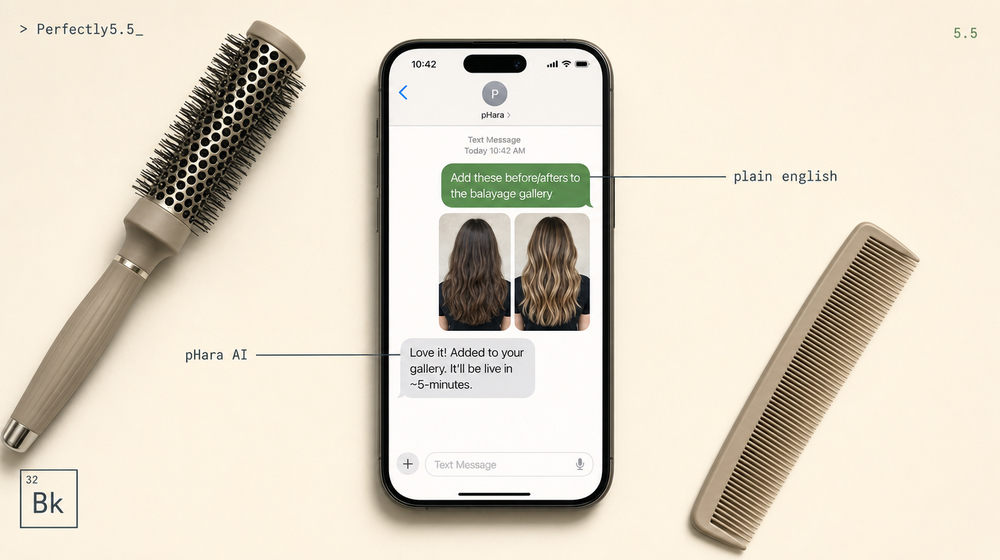
This is one of the highest-impact things you can do on your site — and the easiest to put off. Fresh photos of your office, your team, and your community involvement are what build trust with a patient who’s never met you, and texting them in to pHara means they actually go up instead of sitting in your camera roll for six months.
1. Upload photos from a community event Text: “Add these photos from Saturday’s hearing screening event to the gallery: [attach photos].”
You can text photos directly. pHara associates them with the gallery or page you specify and handles the formatting.
2. Add photos to your gallery Text: “Add these photos to the office gallery: [attach photos].”
Send a single shot or a full batch — pHara adjusts the gallery layout automatically.
3. Create a new gallery section Text: “Create a new gallery section called ‘Community Events’ and add it to the about page.”
Useful for health fairs, hearing-screening days, or a new-technology showcase. pHara wires up the new section and links it from the relevant page.
4. Replace the homepage featured image Text: “Replace the homepage hero image with this photo: [attach].”
A fresh, current hero image is one of the simplest ways to keep the site feeling active. pHara handles the resizing and formatting for every device.
Hours, Location, and Contact Info
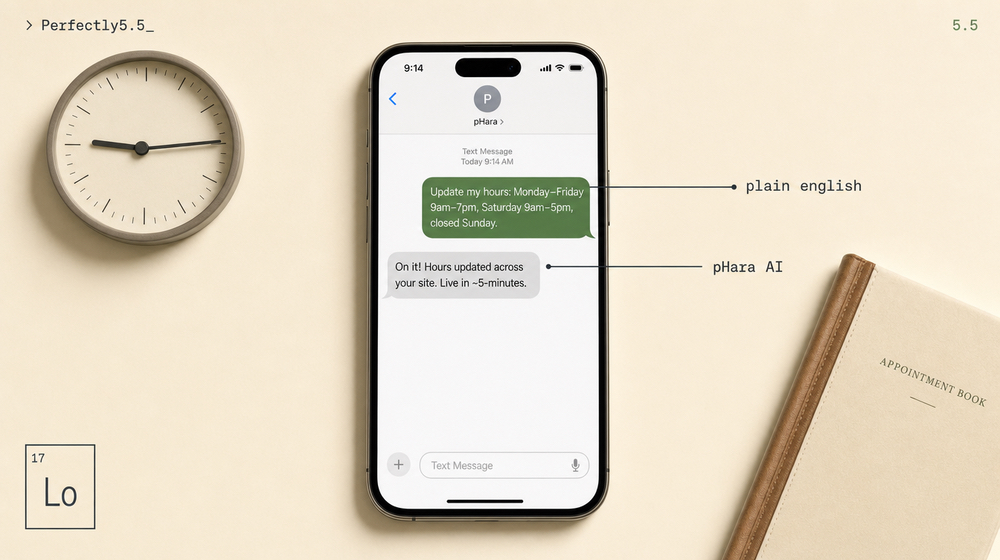
These are the edits that cost you the most when they’re wrong. A patient who drives over on a day you’re closed because your hours haven’t been updated is a patient who may not call back. Texting pHara is the fastest way to keep this section honest.
5. Update your hours Text: “Update my hours: Monday–Friday 9am–5pm, closed Saturday and Sunday.”
6. Add a holiday closure Text: “Add a closure notice: we’ll be closed December 24–26 and January 1.”
7. Change your phone number Text: “Update my contact number to [number].”
pHara updates every instance across the site — header, footer, contact page, and click-to-call links.
8. Update your address Text: “We moved. New address is [address].”
Address updates cascade to structured data (schema markup), which matters for local search accuracy. pHara rewrites the schema automatically so Google sees the change.
9. Add a parking or access note Text: “Add a note that free parking is available in the lot behind the building.”
Small detail — but a lot of first-time and older patients search for this, and it reduces repeat calls from people who are already on their way.
Services and Insurance
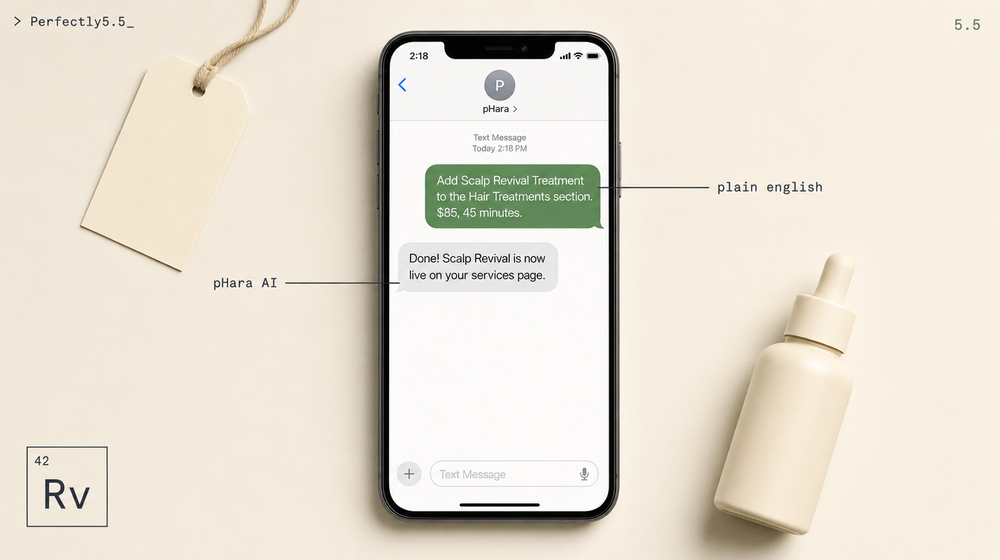
Your services and insurance information are some of the most-clicked sections on any hearing clinic website.
10. Add a new service Text: “Add Tinnitus Retraining Therapy to the Hearing Services section.”
11. Update your insurance networks Text: “We’re now in-network with Aetna and UnitedHealthcare.”
12. Remove a discontinued service Text: “Remove custom swim plugs from the services page.”
13. Add a new service page Text: “Add a new service page for Tinnitus Retraining Therapy under Hearing Services.”
14. Reorder service menu dropdown Text: “Move Hearing Aid Fittings above Hearing Protection in the menu.”
Order matters for skimmers — put your highest-value services where eyes land first.
Providers and Team Pages
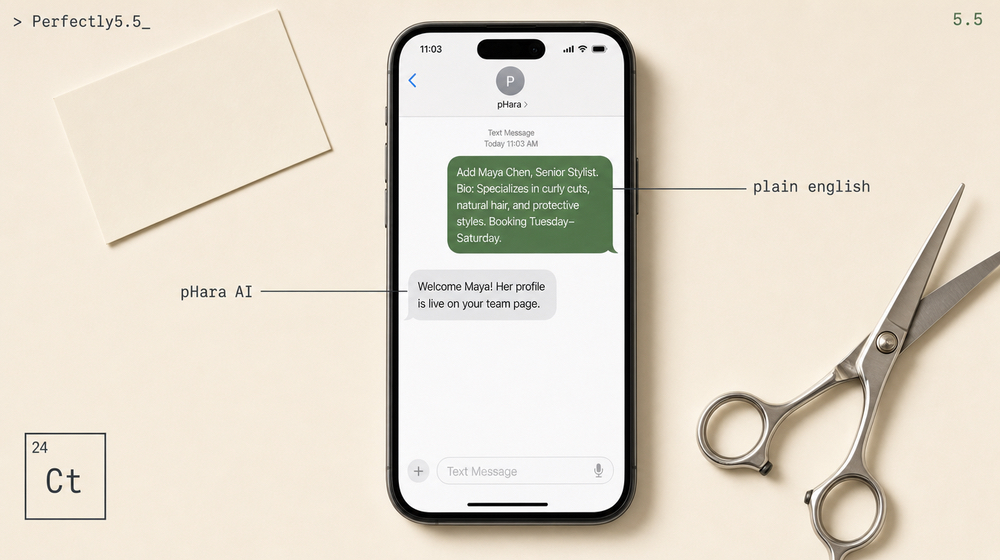
A team page that’s out of date signals turnover. New providers want to see their credentials on the site. Departures should come down fast. pHara keeps the roster in sync with reality.
15. Add a provider Text: “Add Dr. [Name], Au.D. Bio: [2–3 sentences about credentials and specialties].”
16. Update a bio Text: “Update [Name]’s bio — she’s now certified in [new specialty].”
17. Remove a provider Text: “Remove [Name] from the team page.”
18. Update a scheduling link Text: “Update [Name]’s appointment-request link to [URL].”
19. Add a specialties list Text: “Add specialties to [Name]’s profile: pediatric audiology, tinnitus treatment, cochlear implant mapping.”
Promotions and Announcements
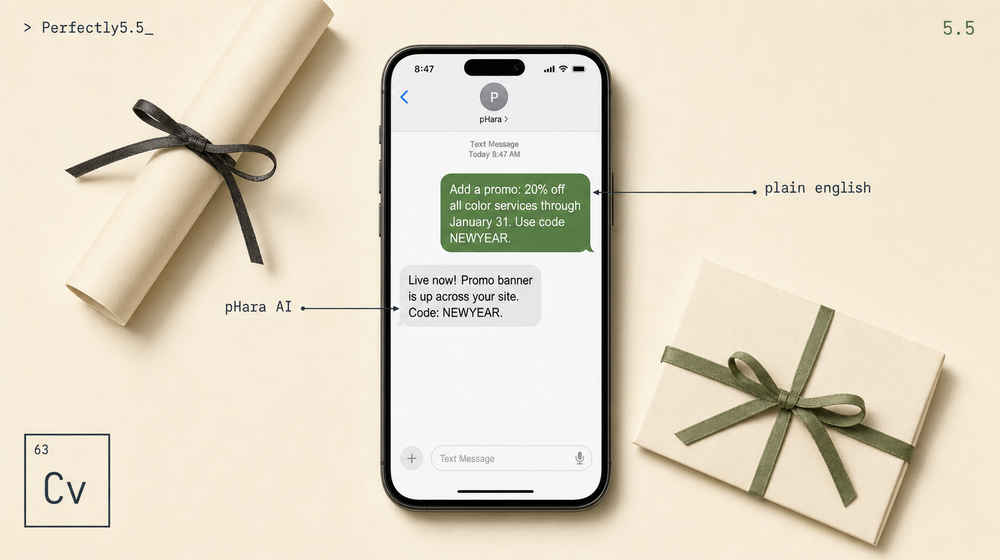
Getting announcements on the site fast — and getting them off on time — is where most practice owners lose control of their messaging. pHara handles both ends.
20. Launch a promotion Text: “Add a promo: free hearing screenings during Better Hearing and Speech Month in May.”
21. Remove a promotion Text: “Take down the screening event promo.”
22. Add a seasonal announcement Text: “Add a banner: now scheduling fall hearing evaluations.”
23. Announce a location change Text: “We’re moving to Suite 12 on June 1. Add an announcement with the new suite number and address.”
24. Publish a financing notice Text: “Add a note on the homepage that we offer financing on hearing aids. Link to [URL].”
Homepage and Services
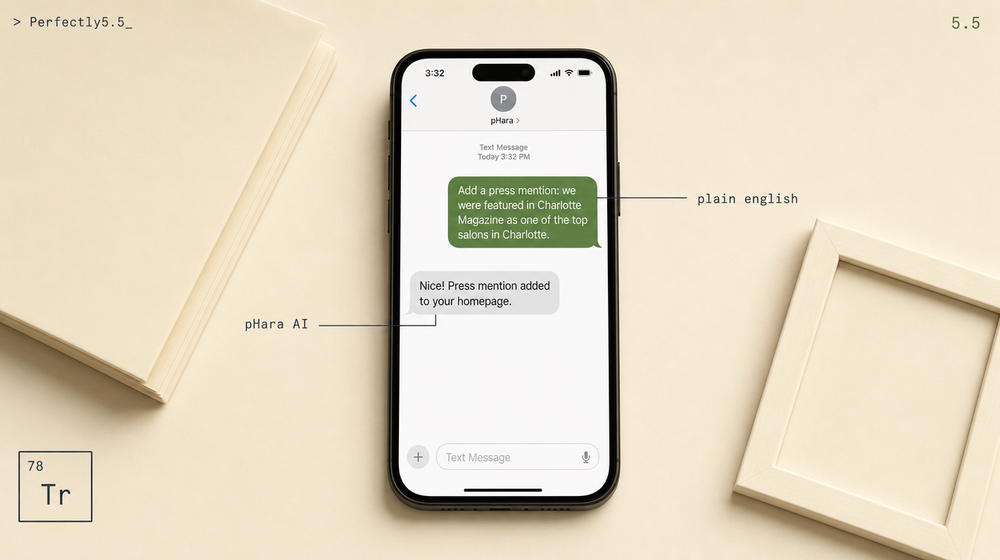
These are some of the highest-traffic surfaces on your site. Keeping them current is what keeps the content team — that’s you, via text to pHara — in control.
25. Add a press mention Text: “Add a press mention: we were featured in [Publication] as a top hearing clinic in [City].”
26. Update the homepage headline Text: “Change the homepage headline to: [Your new tagline].”
27. Add a FAQ Text: “Add a FAQ: Do you accept walk-ins for battery replacements? Answer: We’re primarily by appointment, but we can usually help with quick battery or minor repair needs — call ahead to check.”
The Pattern Behind These Commands
Every command above follows the same logic: describe what you want in plain English, and pHara handles the implementation.
You don’t need to know where the FAQ lives in the CMS. You don’t need to remember which field controls the homepage headline. You don’t need to check whether a change broke anything on mobile. That’s pHara’s job.
What changes when your website responds to a text is simple: the update actually gets made. Not when you have time to log in. Not when you find the right tutorial. When you send the text to pHara.
FAQ
What if I text something the platform can’t handle yet?
pHara will tell you. It doesn’t silently ignore a command or make a guess without confirming. If a request falls outside what the platform supports, you’ll get a clear response — and usually a workaround.
Can I send multiple changes in one message?
Yes. You can batch updates — something like “Update my hours, add a new provider, and remove the screening promo” — and pHara will work through each item. For large batches with a lot of detail, shorter separate texts tend to produce cleaner results.
Do I need to approve changes before they go live?
By default, most content updates go through a confirmation step — pHara shows you what it’s about to change and waits for your approval before publishing. That behavior can be adjusted based on how much oversight you want.
What if autocorrect mangles my command?
pHara reads intent, not just syntax. A minor typo or autocorrect change doesn’t typically break the update. For anything ambiguous, it’ll ask for clarification before applying.
Do I need to memorize a command list?
No — plain English works. If you find yourself sending the same updates repeatedly (like seasonal hour changes), saving a few templates in your phone’s Notes app can speed things up.
To see what this system looks like in full — review growth, local rankings, and more — read how one Perfectly5.5 client went from 154 to 988 Google reviews in 24 months.


